Navigating the Management Workspace - Details Page: Step 2 of 5
Upload an Attachment
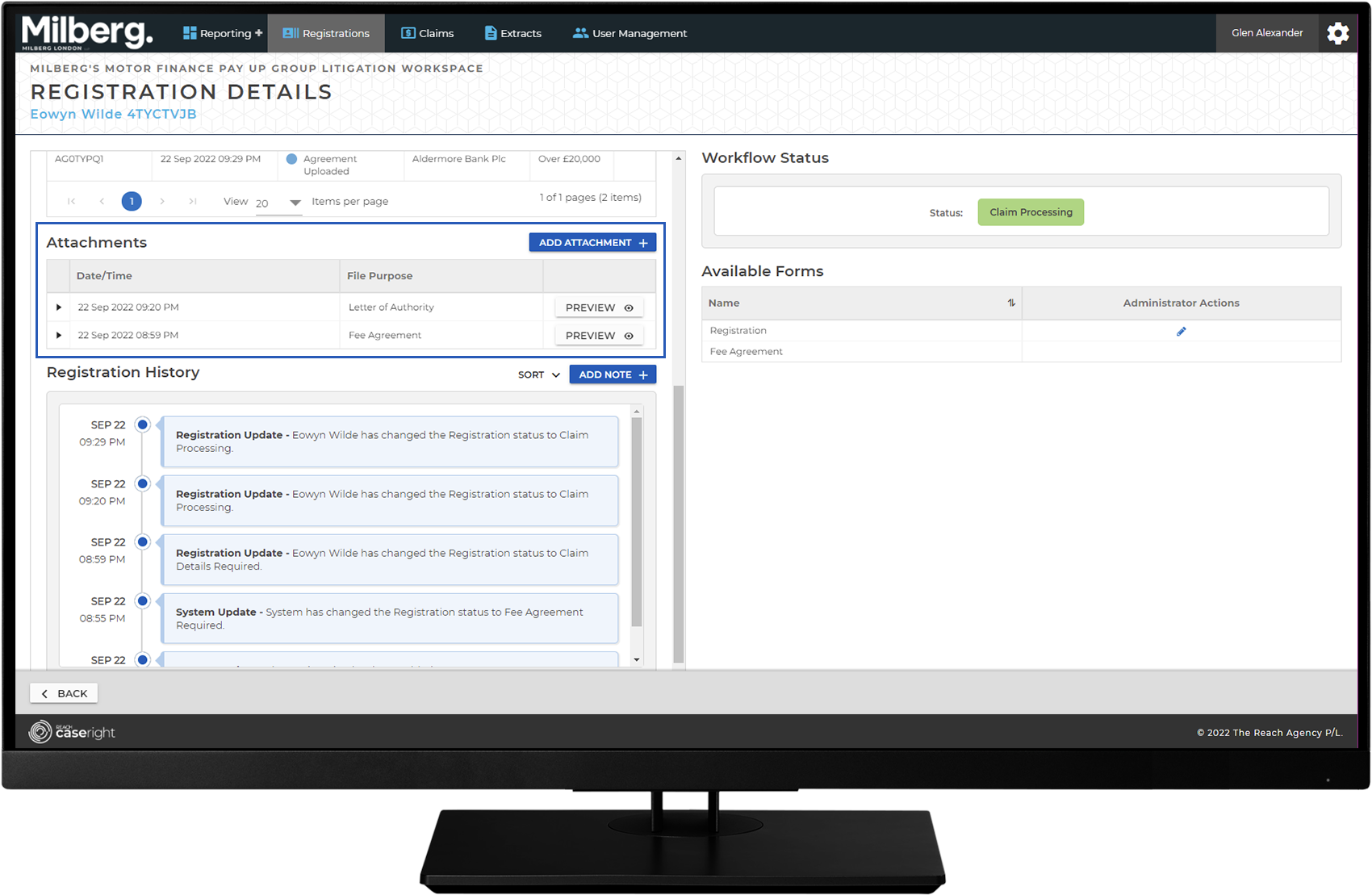
From the details view, select the Add Attachment button in the Attachments section:
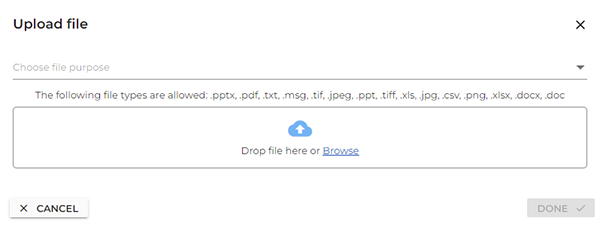
- Select the file purpose type from the dropdown (required)
- Add the file by dragging it from the workstation file manager to the drop area, or look for the file via the workstation file manager to browse for the file
- Select Done
A message is displayed to indicate the document attachment is Pending and will attaching the document is complete.
Note: Once an attachment is added to the details page, it cannot be deleted.